blog
Mac OSX – Install HTML signature in Mail OSX
Having nicely formatted, good looking signature is a must for a company these days. To do that one usually has to create a nice looking signature using HTML. While the first step is quite easy because there are multiple tools available for that installing it on Mac OS X in Mail program is not that easy. Installing signature in Mail requires multiple steps. Below you can find a full list of steps required to create one.
🔹 Installing HTML signature in Mail on Mac OS X El Capitan
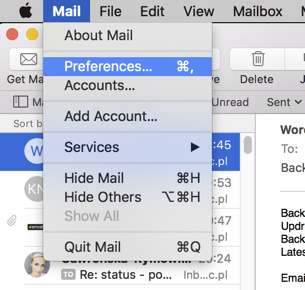
First step is to create a place holder for HTML signature. To do that open Mail and choose Preferences from the top menu.
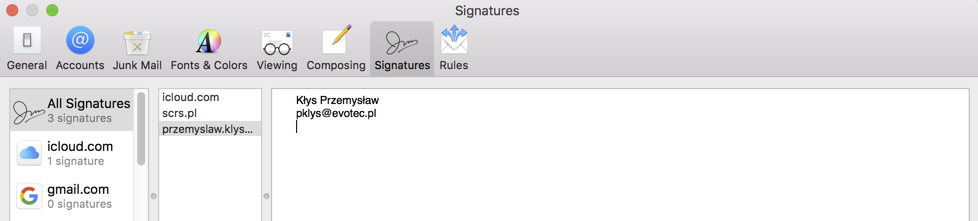
Create a place holder for a new signature. It doesn't matter what's inside as this will be overwritten anyways.
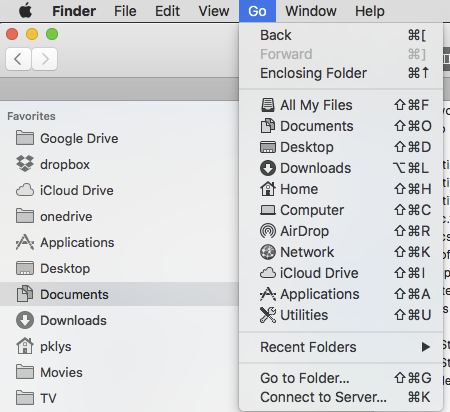
Close Mail application and open **Finder. **In finder if you choose Go menu following menu will appear.
If you keep **options **key on keyboard a new **Library **folder will appear
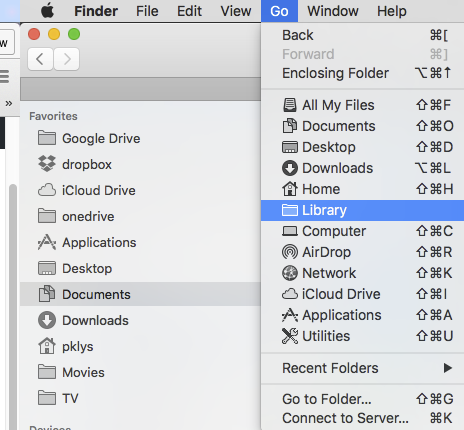
When Library opens up make sure to find the full path Library\Mail\V3\MailData\Signatures
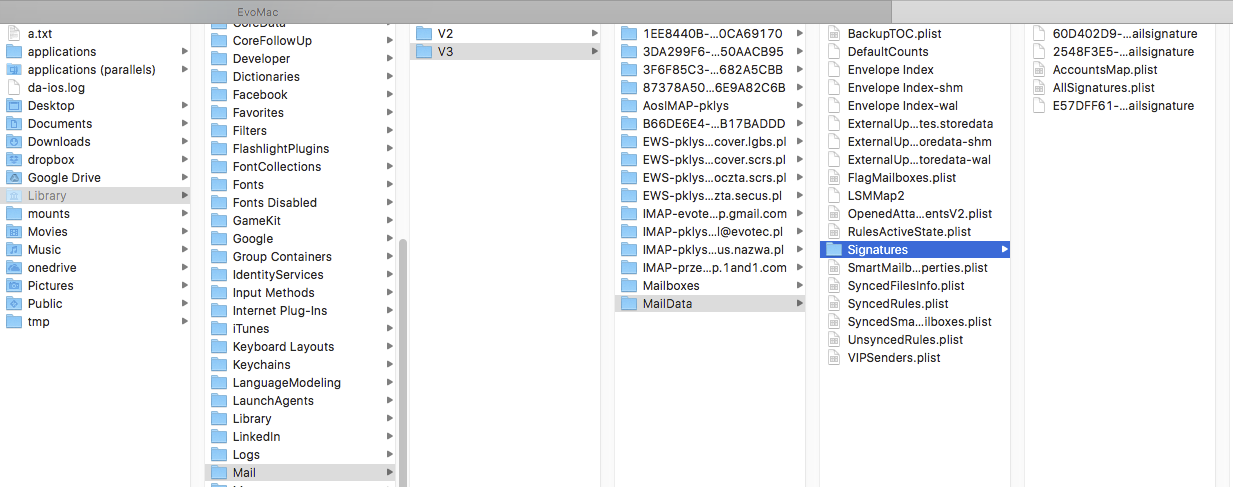
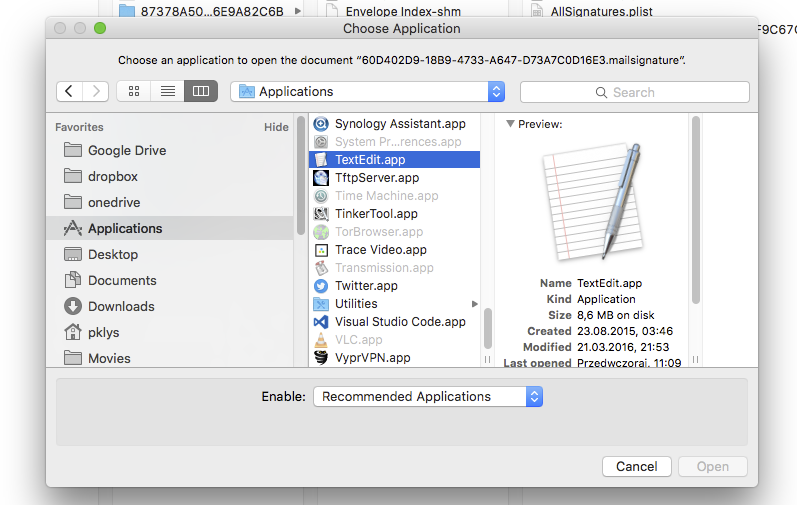
On the list you should be able to find all your signatures that are available. The newest one is the one you're looking for. It should have .mailsignature extension. Double click signature and when asked choose application TextEdit.app to open signature in text way.
The view should consists of something similar as below
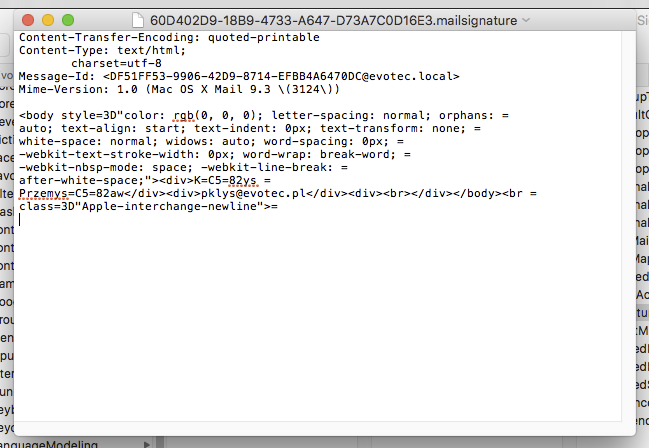
First 5 lines are meta data that needs to stay there as it is. We have to replace the code below with our HTML signature so that it becomes available inside Mail application.
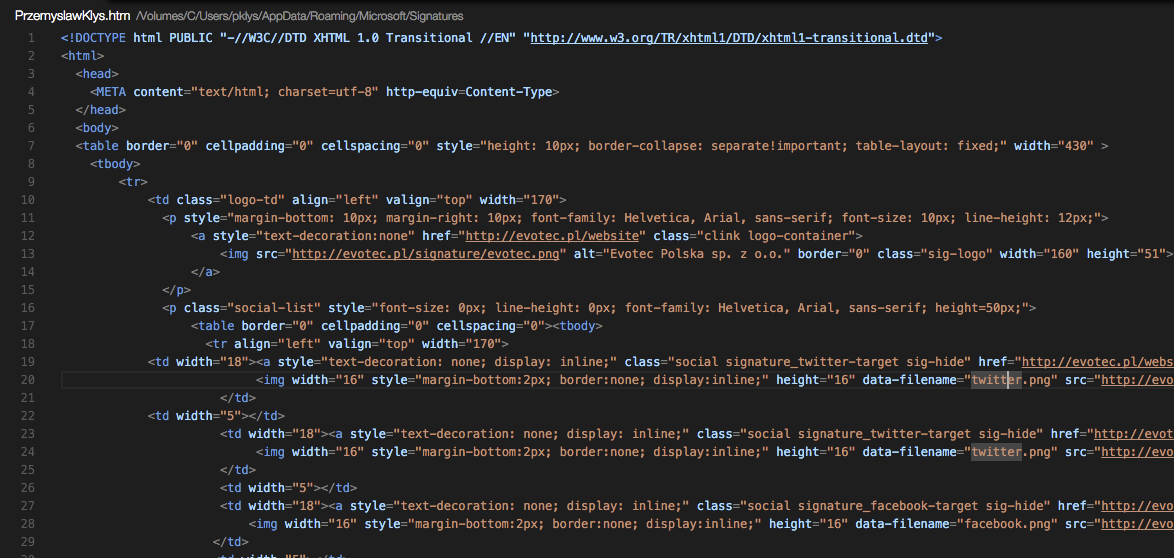
Make sure to copy just the of the HTML signature that you had created.
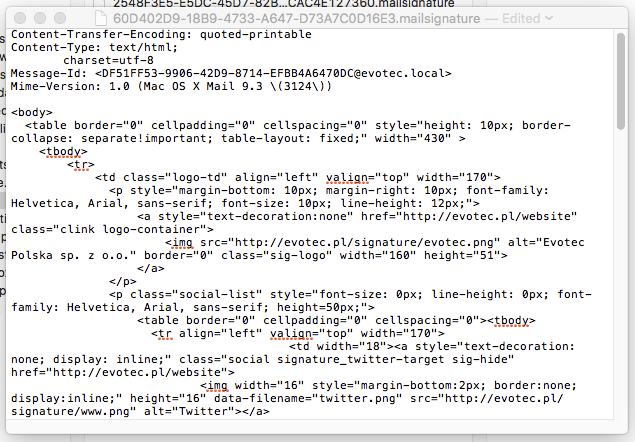
As we've replaced the text we just need to make final step. Very important one. Close the file, right click on it and choose Get Info

Important step here is to mark the file as Locked. Not doing so will trigger revert of the file to version before the change.
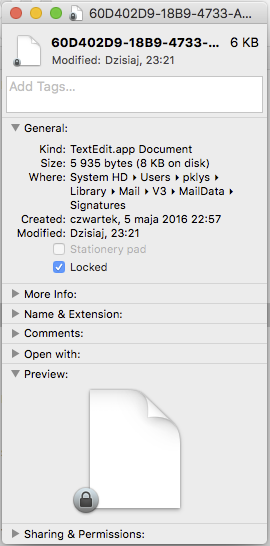
After opening up Mail application again the signature should be available under signatures. You can now manage this signature as you would normally do and assign it to auto appear when creating new emails and so on.
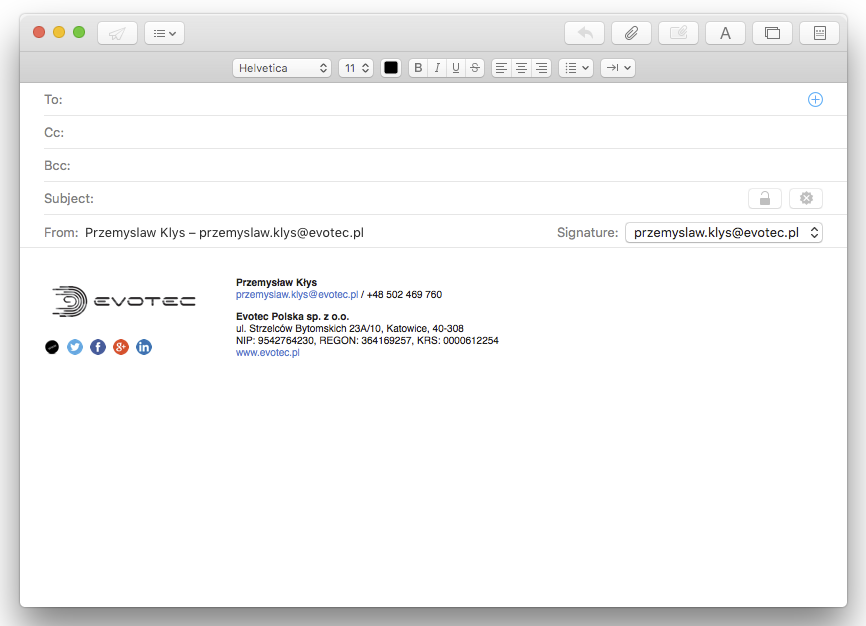
Please be aware that modifying signature should be done on HTML level. Changing it from the GUI may break it. If you need to make adjustments make sure to simply update HTML Signature and repeat this procedure again.