blog
Migrate List Items from SharePoint 2007 to SharePoint 2013 with Access 2016
One of our Clients has finally decided to drop MOSS 2007 (SharePoint 2007) and actually move to SharePoint 2013. While there are several ways to do migration we decided that the old setup is so bad and confusing that's it's much easier to create Clean SharePoint 2013 Foundation and actually simply copy all the files to new SharePoint. While copying the files and folders was a breeze copying a List Items with attachments is a quite different story. Fortunately there's an easy way to do this with Microsoft Access 2016 (2013 works too).
🔹 Export SharePoint 2007 data to Access 2016
Open Microsoft Access 2016
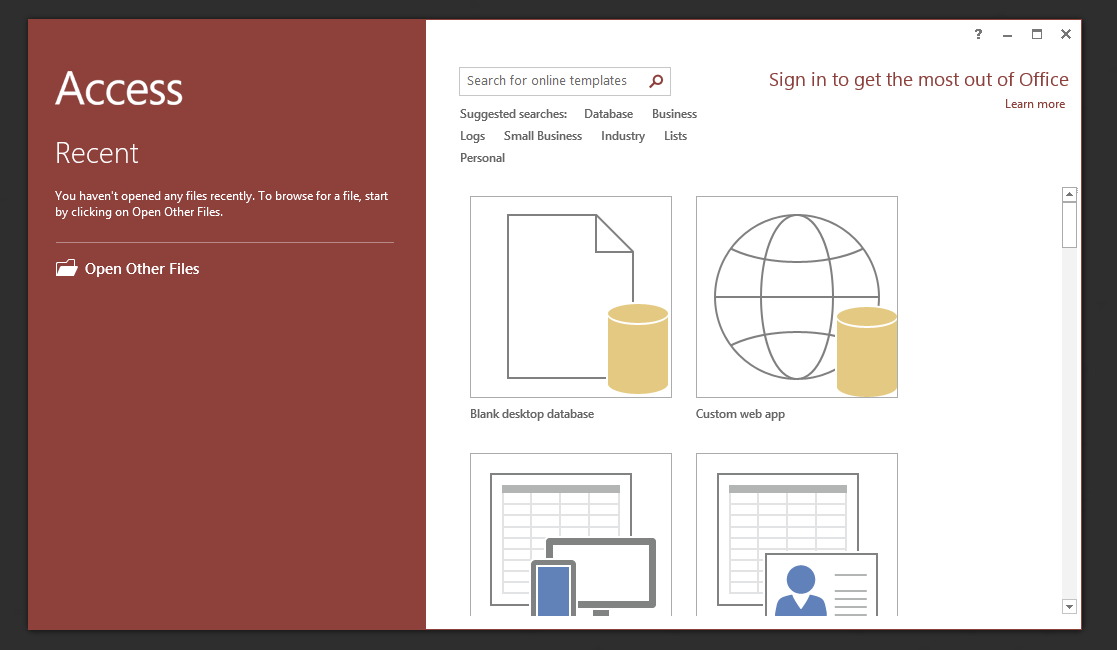
Choose **Blank desktop database **type in name of the database and press Create
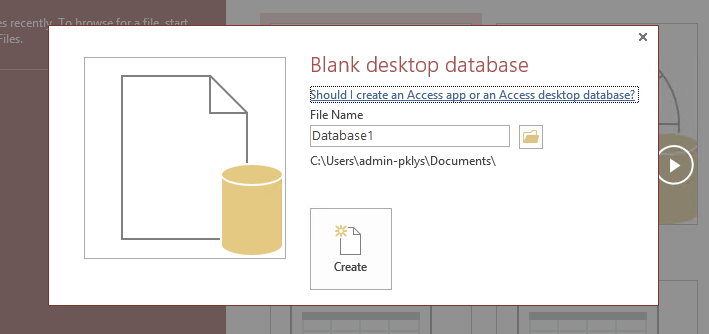
Switch to **External Data **tab, choose More and use SharePoint List
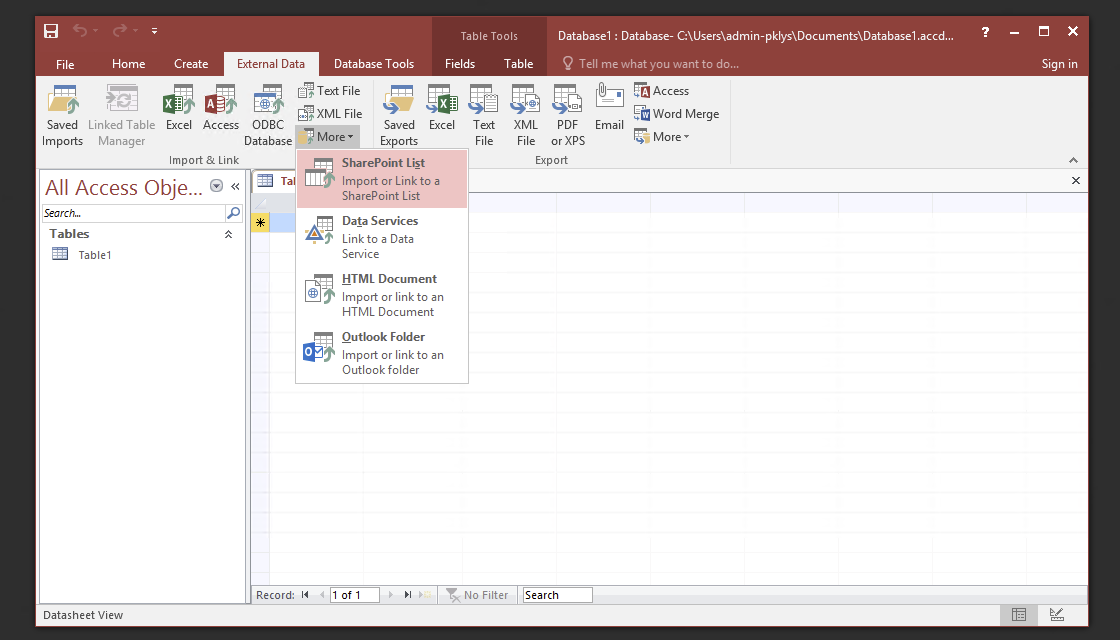
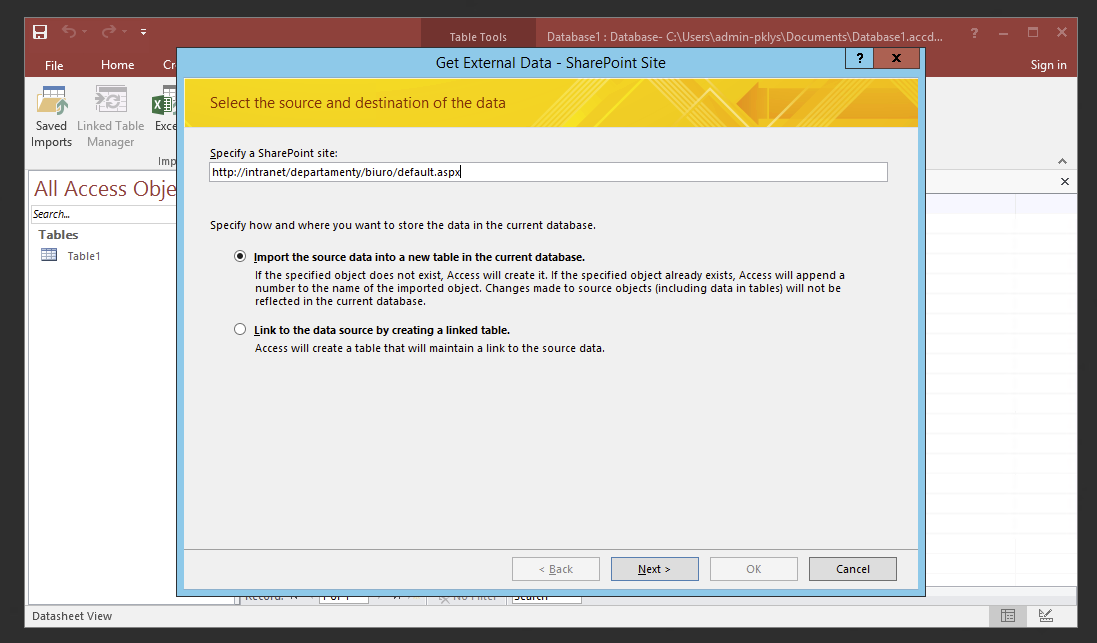
On next screen type in place where you have List Libraries and make sure to choose Import the source data into a new table in the current database. Press Next to proceed.
After pressing **Next **list of potential data is displayed. Choose the ones you're interested in and press OK
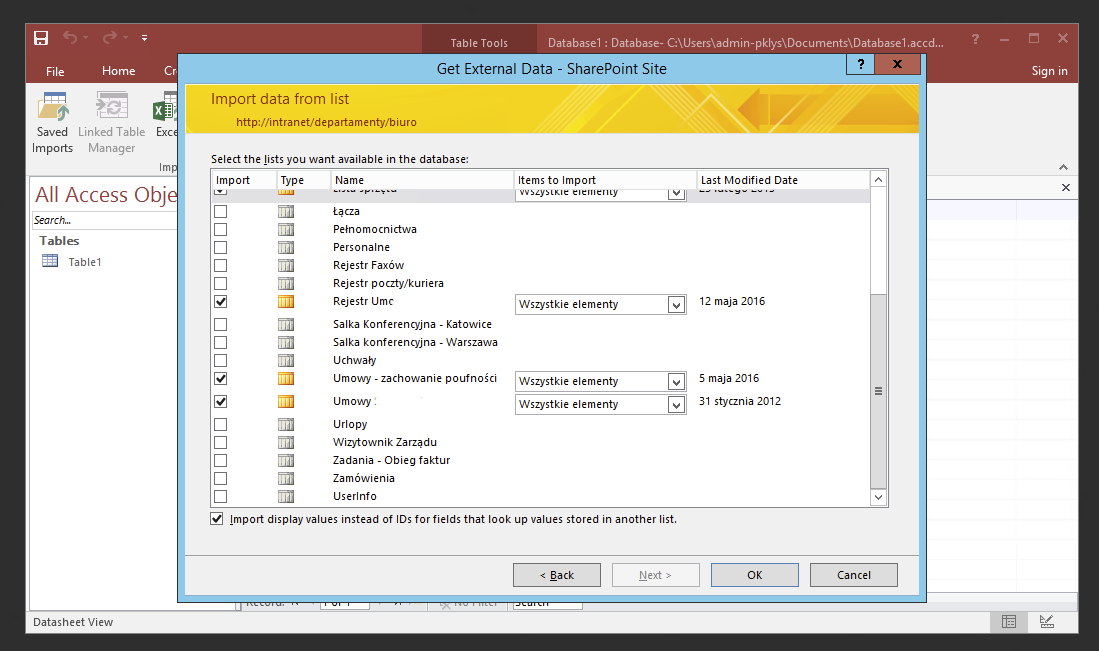
Now Access may take some time to process import from SharePoint 2007 to Access 2016. At the bottom of the screen progress should be shown.

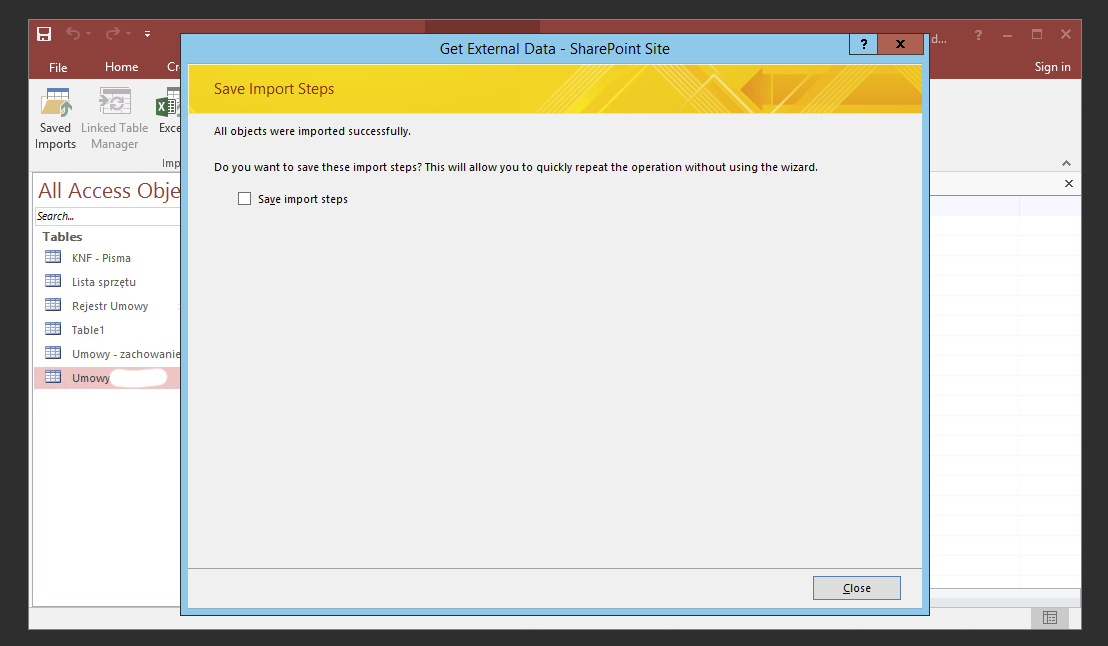
Access during move may become unresponsive. If you've chosen multiple Lists it may need to fill progress bar multiple times. Just give it time. After it's done click Close.
🔹 Import Access 2016 data to SharePoint 2013
Now that we have exported MOSS 2007 List Data with attachments we need to import these data back to SharePoint 2013.
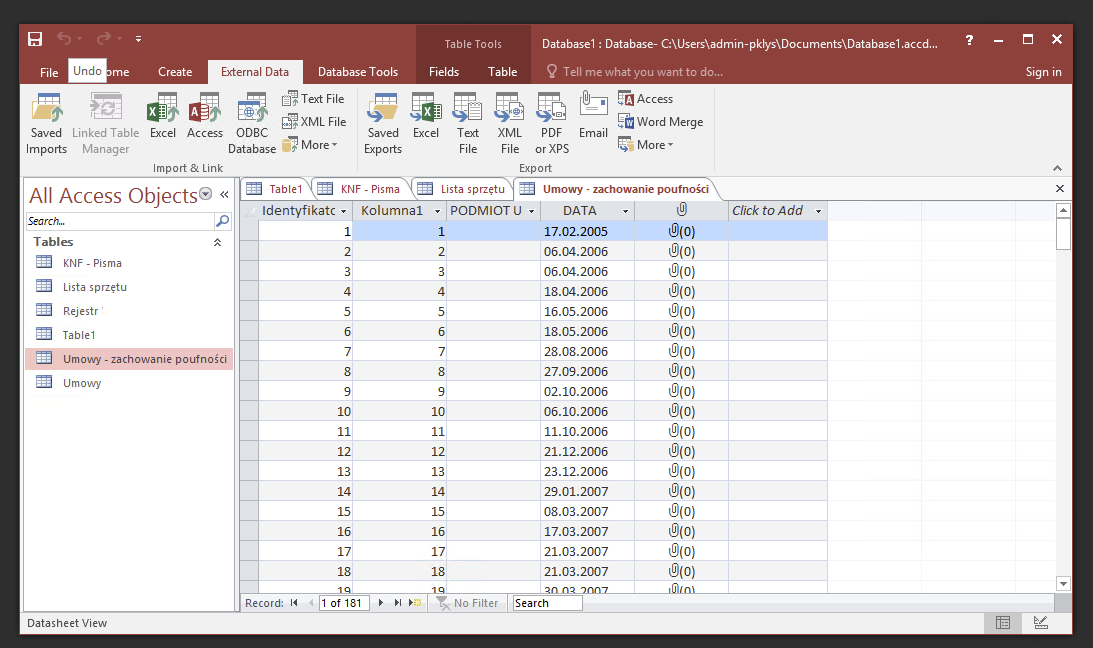
Now for every List on the left side under All Access Objects we need to do the Export procedure. On the same External Data tab under Export Group once again we click More and choose SharePoint List.
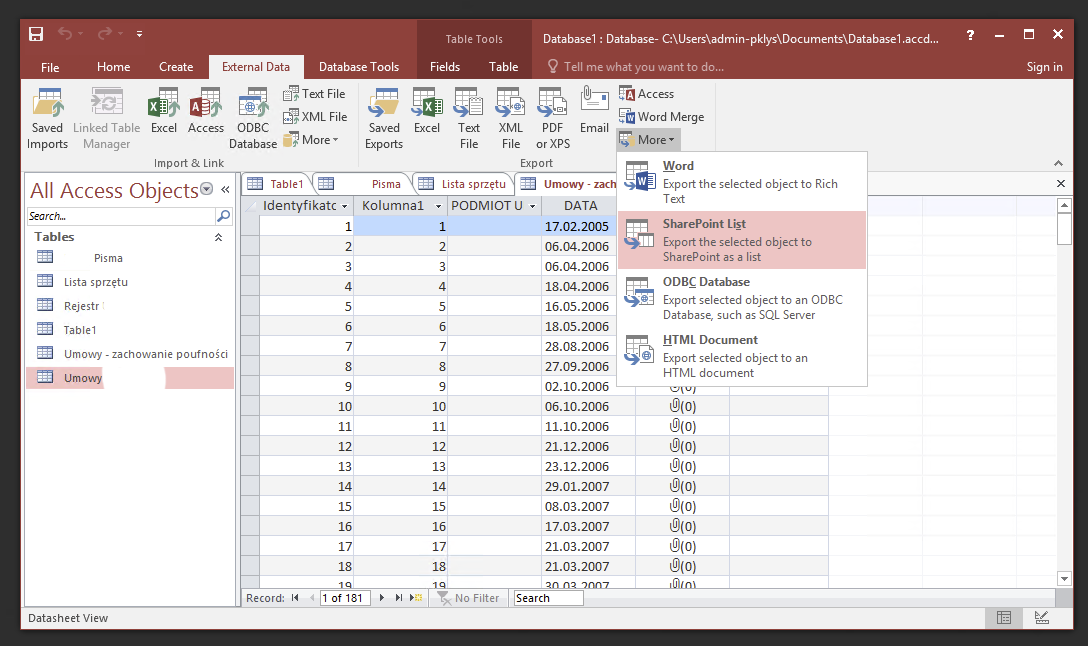
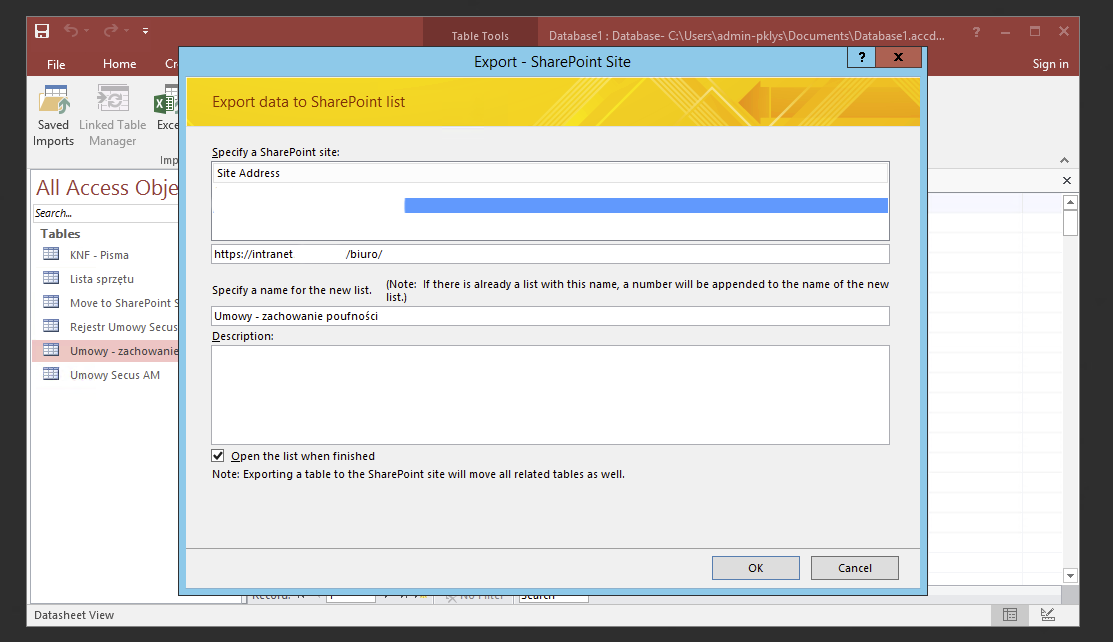
New Export Wizard shows up where you point it to new SharePoint 2013 url, optionally give new name to the list if it's supposed to be something different then it was and press OK.
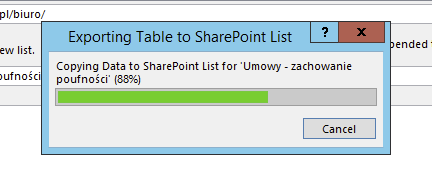
That's it! During Exporting there will be a small progress bar showing how things are doing.
It will even open up on the site when it's done if we leave **Open the list when finished. **