blog
Windows 2019 – How to add language pack?
Today I've been setting up a new server on Windows 2019. By default, I install Windows with English version even if Client works in their language such as German, Polish or Swedish. While some people install Windows in a language they desire to work with, years of experience taught me that installing English and then adding Language Pack is the best way to go. All errors, windows events, and general troubleshooting is much easier if those are in the native English language. Each version of Windows made it easier to install the language pack and have that up and running in no time. In Windows 2019 it's even more comfortable… or is it?
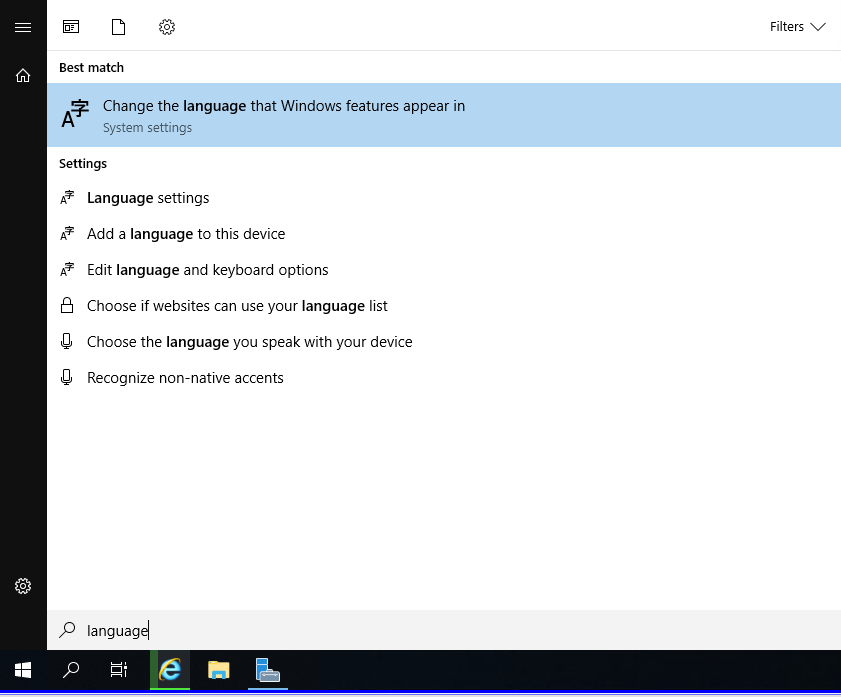
It's as easy as pressing Start, typing in language and using Change the language that Windows features appear in.
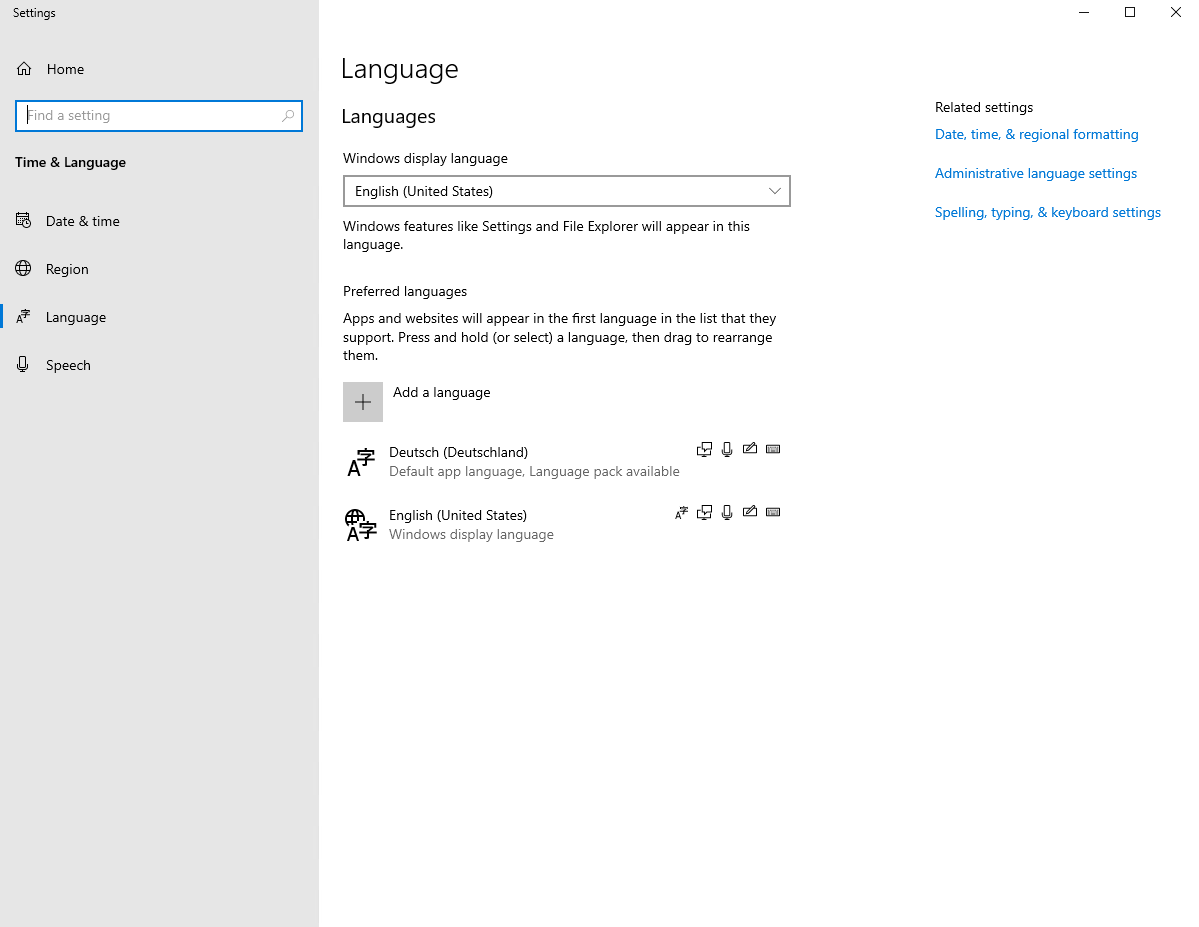
You get a list of languages where you can just press** Add a language**, chose language you want and it should appear under Preferred languages.
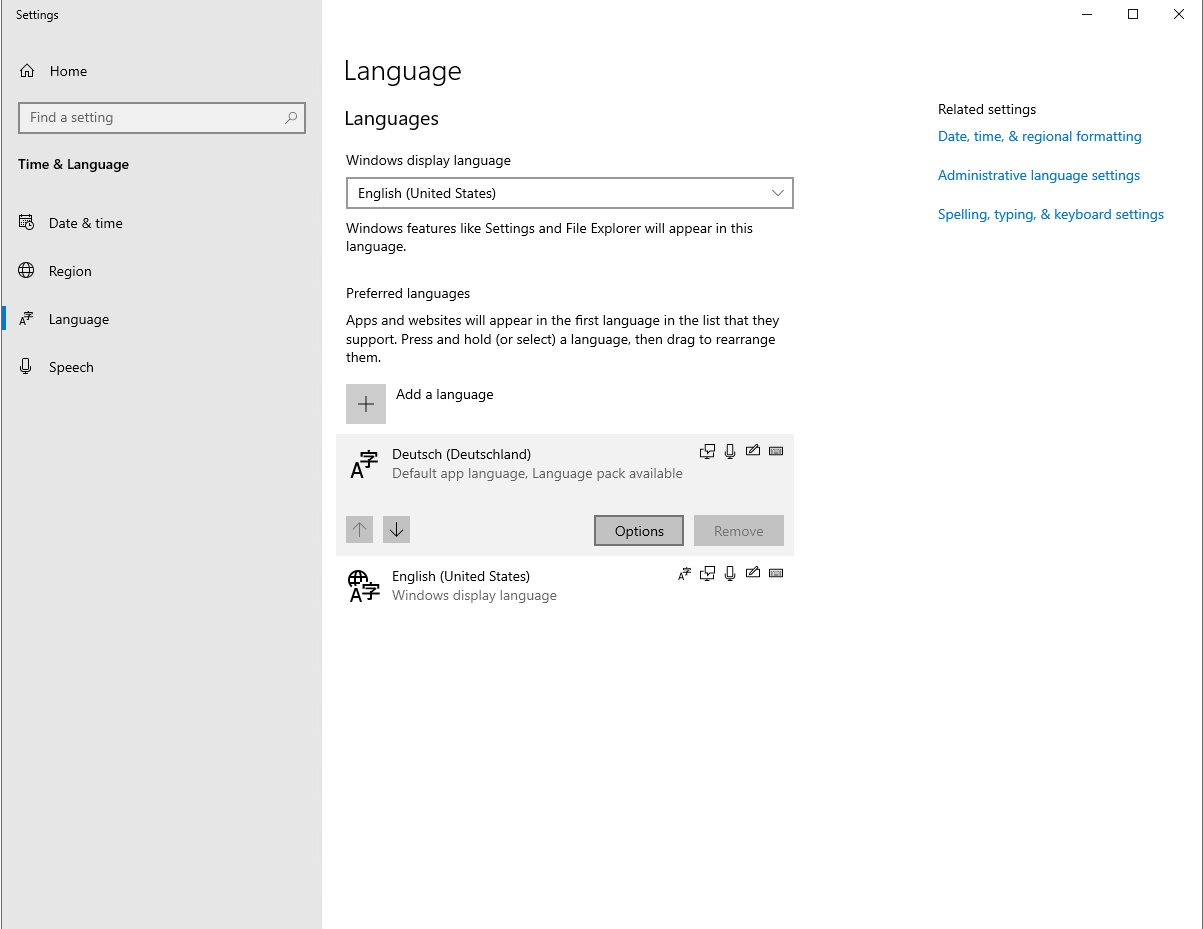
Now you press Options, a new page appears where you simply press Download and… nothing happens. So much for an easy way to implement a new language.
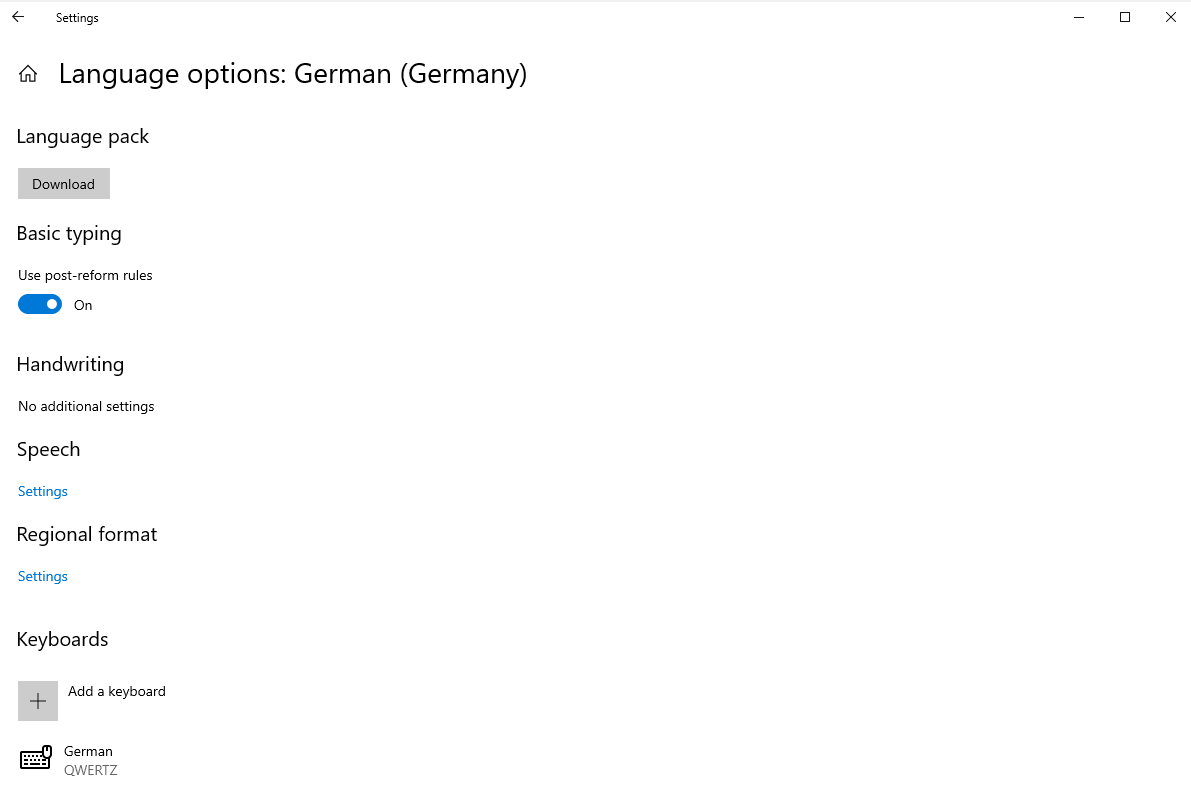
💡 Workaround – Installing language pack Windows 2019
It seems that when Desktop Experience for Windows 2019 is enabled this option is not available (for now at least). Fortunately there's an old way of doing it.
- 💡 Download language pack ISO for Windows 2019
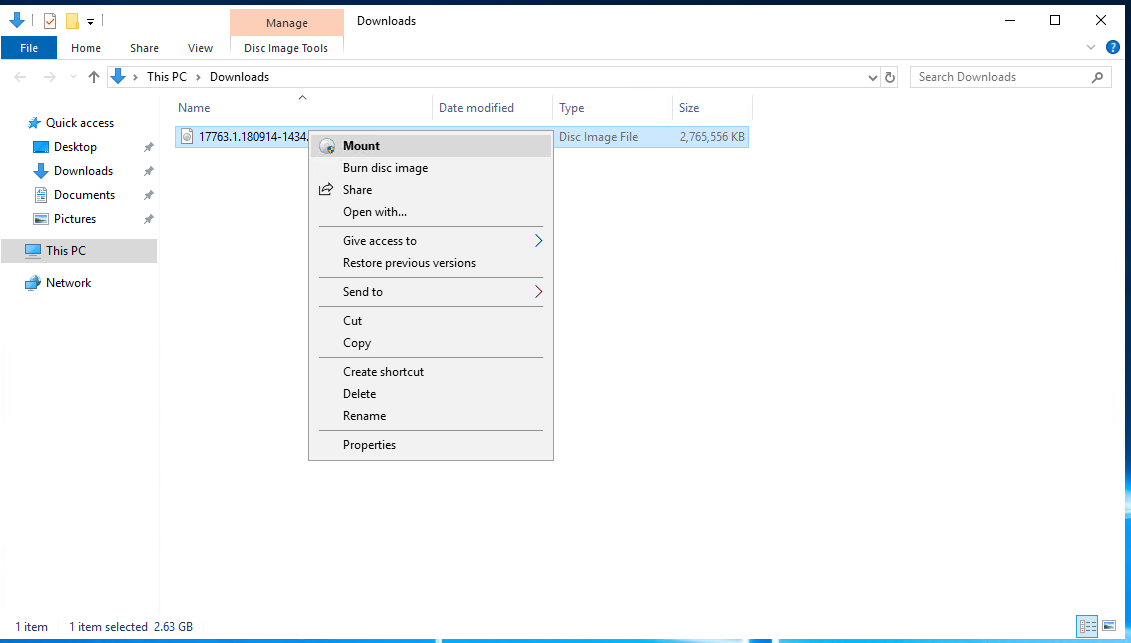
- 💡 Mount the ISO file, so that it shows up as** DVD drive**
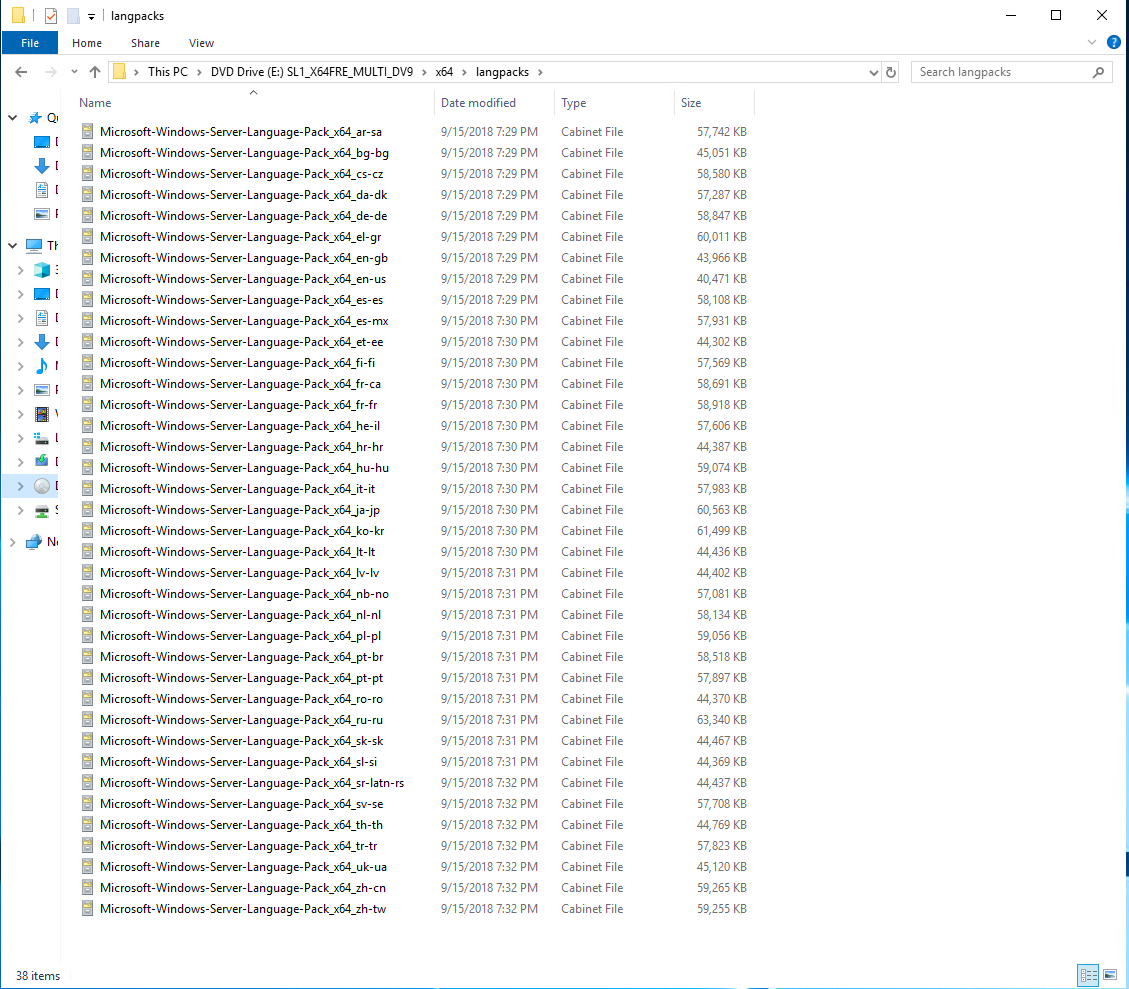
- 💡 Explore drive, go into** :\x64\langpacks** and copy required language packs to a different folder. If you don't do that it will take Windows a lot more time to install even a single language pack.
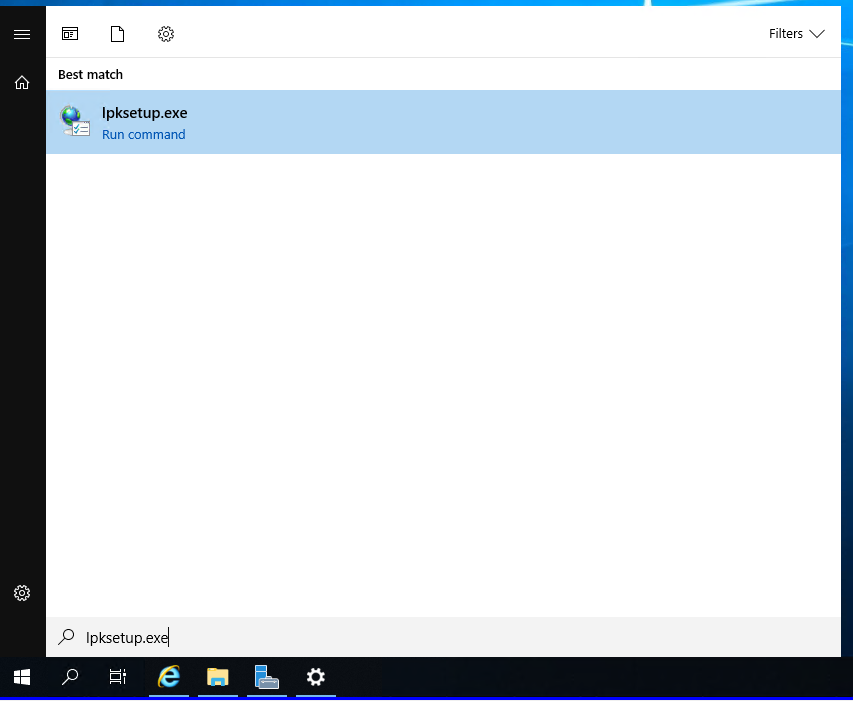
- 💡 Open Start Menu, and type **lpksetup.exe **which should open Install or Uninstall display languages wizard.
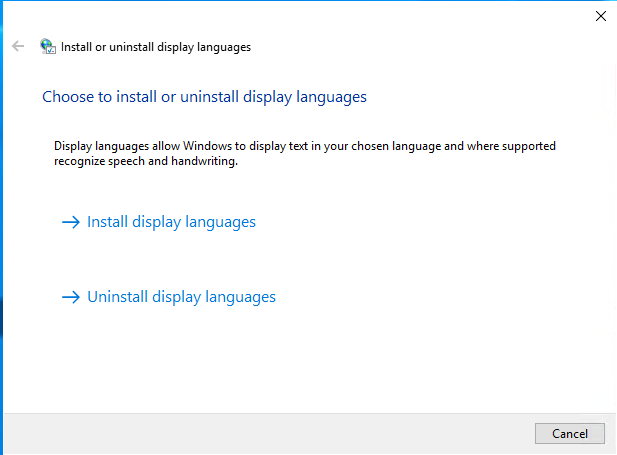
- 💡 Open Start Menu, and type **lpksetup.exe **which should open Install or Uninstall display languages wizard.
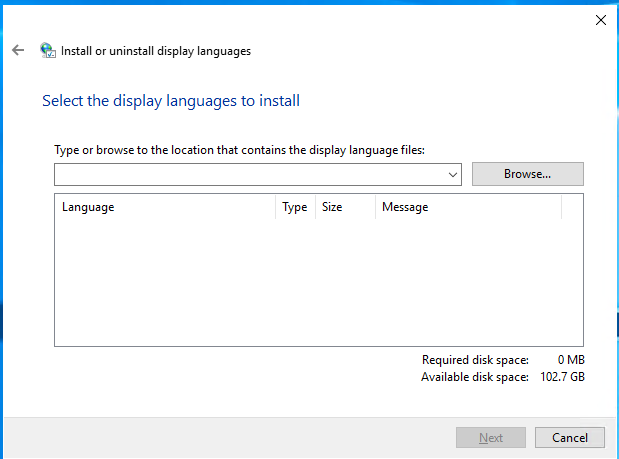
- 💡 Point it to the directory where the language pack resides
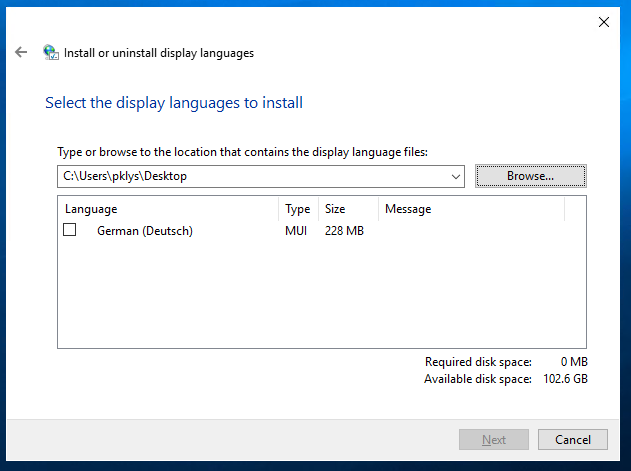
- 💡 Point it to the directory where the language pack resides
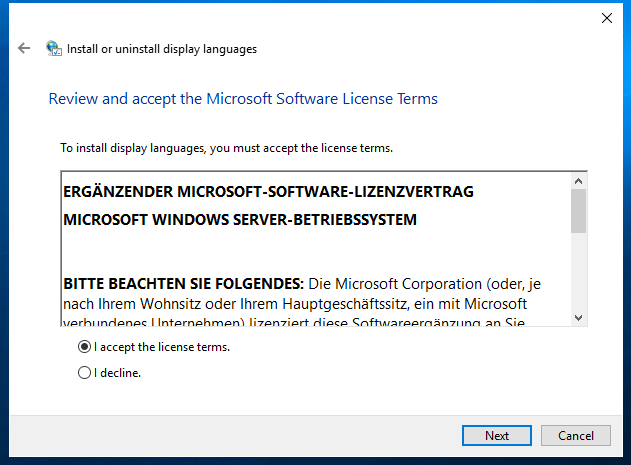
- 💡 Accept the license terms and press Next
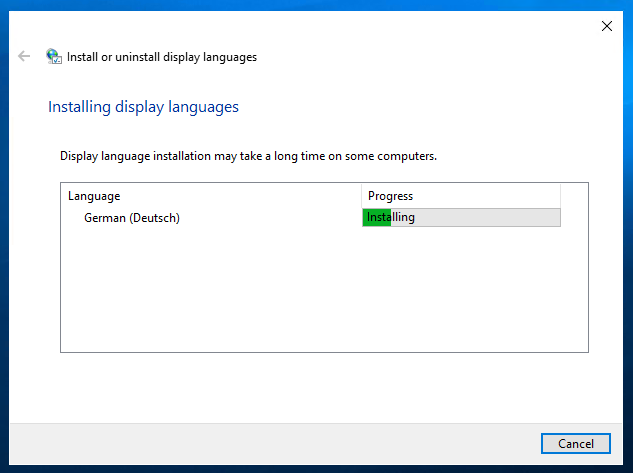
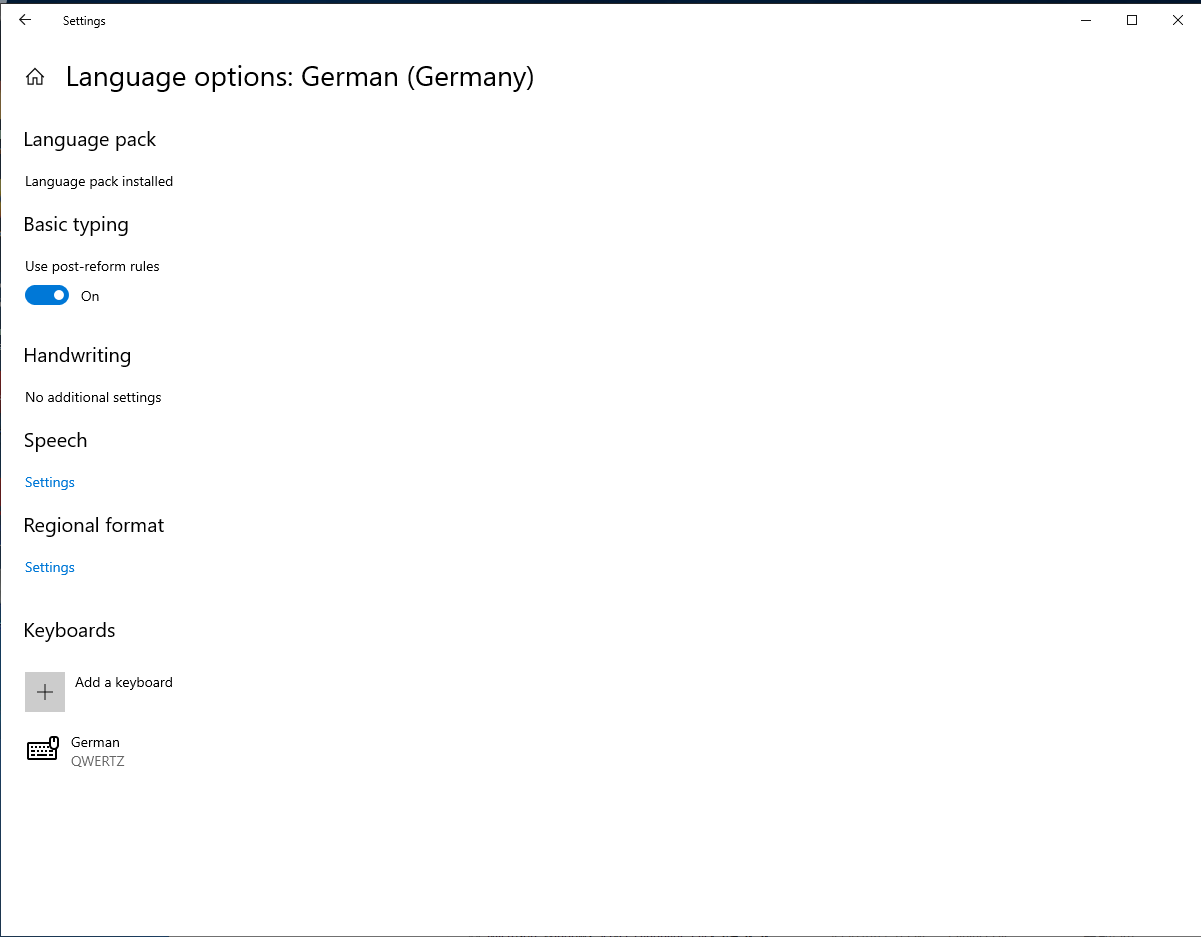
- 💡 After it's done, when you visit language options again everything appears to be in order.
Hopefully, Microsoft will fix this sooner rather than later.